

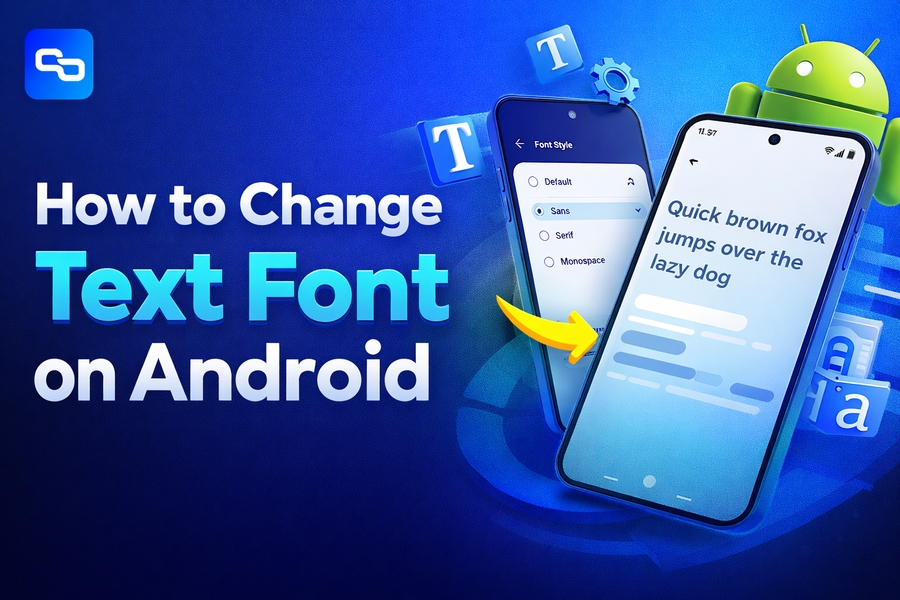
Changing the text font on your Android device allows you to personalize your experience and improve readability. While Android comes with a set of default fonts, the good news is that you can customize them to suit your preferences. Whether you want to make your device stand out or simply improve your visual experience, there are various ways to alter the text font on Android.
This guide will provide you with detailed instructions for changing the font on your Android phone, whether through system settings or third-party apps.
Built-in Methods to Change Font on Android
Many Android devices let you change the system font directly in the settings. This option is available primarily on devices running custom Android skins, such as Samsung’s One UI or Xiaomi’s MIUI. To change the font, navigate to your device’s settings and find the “Display” section. From there, you can select a font style that best suits your preferences.
For devices that support this feature, you will likely find a variety of pre-installed fonts to choose from. Samsung, for instance, allows you to change the font by going to Settings > Display > Font Size and Style. Some brands even offer font size adjustments along with the ability to switch to a different style.
For those who don’t have font customization built into their device’s settings, there are other methods to explore. For more details on how you can use different font styles across apps and your phone’s interface, you might want to check out how to flip text upside down in word.
Using Third-Party Apps to Change Fonts
If your Android device doesn’t offer built-in font changes, you can still change your text style using third-party apps. There are several applications available on the Google Play Store, such as iFont, FontFix, and HiFont, that let you apply custom fonts to your device. These apps give you access to a broader range of font options beyond what’s available in the default settings.
While these apps offer more customization, they usually require additional steps, such as enabling certain permissions or even rooting your device in some cases. Make sure to choose reliable and secure apps to avoid potential security risks. Once installed, you can explore the various fonts offered by these apps and apply them to your system.
Moreover, these third-party apps let you experiment with custom fonts often seen on other platforms. You can even use these fonts in social media posts, text messages, and more. For more information on how to make text upside down in Google Docs, you can refer to how to make text upside down in google docs.
Changing Fonts on Rooted Android Devices
Rooting your Android device opens up advanced customization options, including the ability to change system fonts across the entire device. Rooting gives you full administrative access to your Android system, allowing you to control font settings. This process is more complex and carries potential risks, including voiding your warranty and causing system instability.
Once rooted, you can use apps like Font Changer or Xposed Framework to install custom fonts throughout the system. However, it’s essential to take caution during this process. If you’re not familiar with rooting, it’s best to avoid it or consult with experts before proceeding.
Rooted devices also let you flip the text upside down or adjust fonts in specific apps, giving you ultimate flexibility for customization. To get the most out of this feature, you might want to learn more about how to type upside down exclamation mark.
Using Custom Launchers for Font Customization
If your device doesn’t support font changes natively, you can use custom launchers to change the font style of your Android phone. Launchers are apps that let you modify the look and feel of your home screen and user interface. Popular launchers like Nova Launcher and Apex Launcher let you change the font, icon styles, and even the overall layout of your phone.
To change the font, install a custom launcher from the Google Play Store. After installation, go to the launcher’s settings, look for font customization options, and select the font style you prefer. This option is less intrusive than rooting your device, and you won’t have to modify your phone’s system files.
For further details on how to make text upside down in Word, you can check out this helpful guide on how do i turn text upside down in word.
Adjusting Font Size for Better Readability
Changing the font style is one way to personalize your Android experience, but you can also adjust the font size to make it easier to read. Android devices offer accessibility settings that allow you to adjust text size across apps and system interfaces. This is particularly helpful for users who have visual impairments or those who simply want larger text for better readability.
To adjust the font size, go to Settings > Accessibility > Display and select Font Size. You can increase or decrease the text size according to your preference. This setting will affect text in emails, websites, apps, and other system interfaces. Many Android phones also allow for the text to be bolded for greater contrast.
For more information on adjusting your settings for enhanced readability, learn why Arabic is written backwards.
Conclusion
Personalizing your Android device by changing the font style can help enhance your user experience. Whether you prefer to stick with the built-in options available in your device’s settings or explore third-party apps for more advanced customization, you have multiple ways to tweak your phone’s appearance. Keep in mind that some methods may require additional steps, such as rooting your device, so proceed with caution. Always ensure you’re using trusted sources and apps to avoid security risks.
Once you’ve changed the font, your Android phone will have a fresh new look, making it truly your own. Whether it’s for better readability or simply for a personalized aesthetic, font customization is an easy way to enhance your Android experience.
FAQs
How can I change the font on my Android device?
To change the font on your Android phone, go to Settings > Display > Font Size and Style. Some devices also allow you to install custom fonts via third-party apps or launchers like iFont or Nova Launcher.
Are there any built-in options to change fonts on Android?
Many Android phones, especially those with custom skins like Samsung or Xiaomi, offer built-in options for changing fonts. Navigate to Settings > Display to choose from pre-installed font styles that are easy to apply.
How do I change the font size on Android?
To adjust font size on Android, go to Settings > Accessibility > Display and select Font Size. You can then adjust the slider to make the text larger or smaller, affecting system-wide text and app content.
Can I change the font without rooting my device?
Yes, you can change the font on Android without rooting your device. Use built-in options or third-party apps like iFont or FontFix. Rooting is only necessary for more extensive customization across system-wide settings.
How do I install custom fonts on my Android phone?
To install custom fonts, download a font management app like iFont or FontFix from the Google Play Store. Once installed, follow the app’s instructions to apply custom fonts to your device’s UI or specific apps.
Can I change the font on a rooted Android device?
Rooting your Android device allows you to change the system font across the entire device. Apps like Font Changer or Xposed Framework let you install and apply custom fonts throughout your system, offering advanced customization.
What are the risks of changing fonts on a rooted device?
Rooting your device can lead to security risks, void warranties, or cause system instability. It’s essential to proceed with caution and only use trusted apps or guides when changing system fonts on rooted Android devices.
How do I use a custom launcher to change fonts on Android?
Custom launchers like Nova Launcher allow you to change font styles. After installing a launcher, go to its settings, find the Font Style option, and select your preferred font. This method does not require rooting.
Are there any apps for changing fonts on Android?
Yes, apps like iFont, FontFix, and HiFont allow you to change fonts on your Android device. These apps provide a variety of fonts and easy-to-follow steps for customization, no root required.
Why is font customization important for Android users?
Font customization enhances readability and personalization on Android devices. By choosing fonts that suit your style, you can improve the visual experience, making it more comfortable and enjoyable to navigate through your device.